

You type a simple question into Google. Before you see a single real website, you get a big paragraph written by AI. Sometimes it’s right. Sometimes it isn’t, and you only find out after you click the links anyway.
If you’re looking for how to get rid of AI Overview, here’s the honest answer first: Google gives you no permanent off switch. But you can stop seeing it, either on one search or on every search, in about two minutes.
This guide covers every method that works right now. You’ll see which fix to use on your laptop, Android phone or iPhone, what each fix breaks, and which free search engines are worth trying if you’re done with AI answers.
Quick answer
- There is no permanent setting. Google treats AI Overviews as a built-in part of Search, like snippets or knowledge panels.
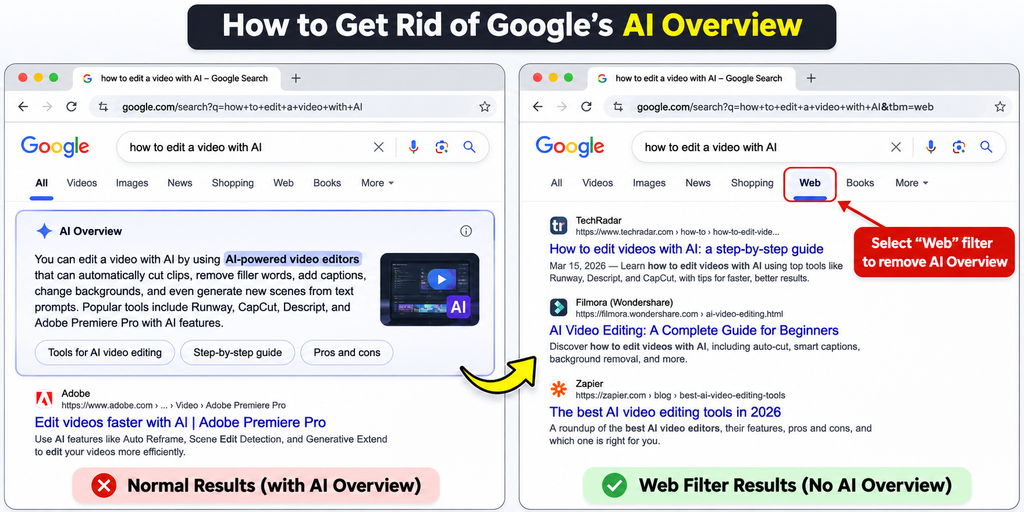
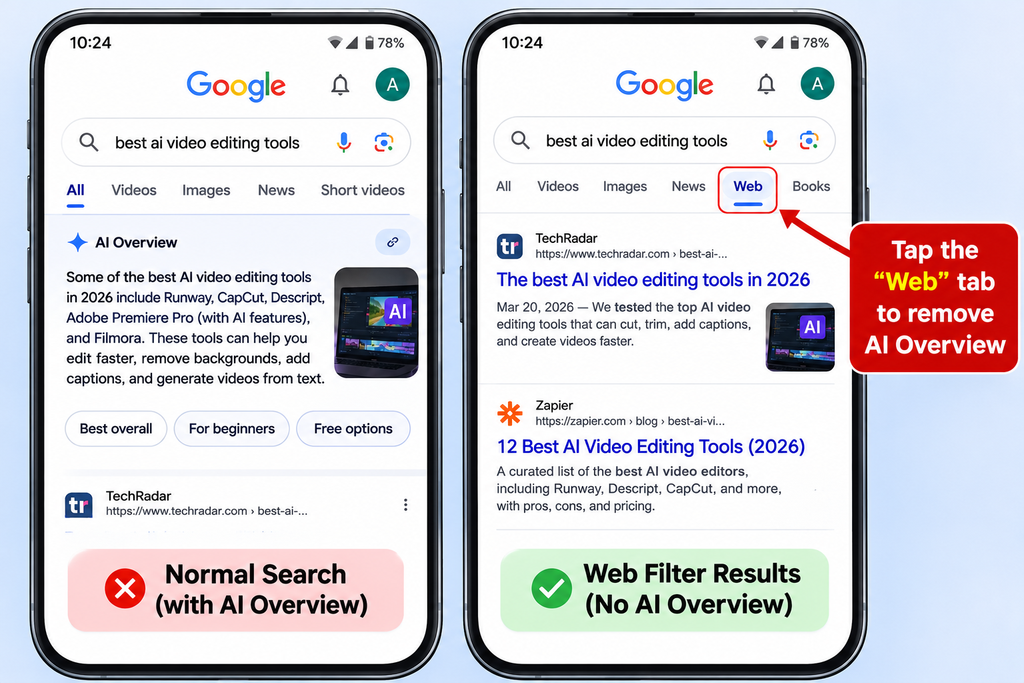
- Fastest fix: search as usual, then tap Web (or More → Web) under the search bar.
- Permanent fix on a laptop: set
https://www.google.com/search?q=%s&udm=14as your default search engine in Chrome, Edge or Firefox.- Quick hack: add -ai to the end of your search.
- Want no AI at all? Use noai.duckduckgo.com, which switches off all of DuckDuckGo’s AI features by default.
Can you turn off Google AI Overview completely?
No. There is no toggle in your Google account, in Search settings or in the Google app that removes AI Overviews for good.
Old guides tell you to switch off an experiment in Search Labs. Ignore them: Google has said this does not disable AI Overviews in Search.
So the real question is how to get rid of AI Overview from your screen. Every method below is a workaround. You aren’t switching the feature off. You’re asking Google for a page that doesn’t include it, hiding it, or using a different search engine.
Decision rule: if a guide promises a “one-click permanent off switch” inside Google, it’s out of date or wrong.
How to get rid of AI Overview: 6 methods compared
Here’s every option at a glance. All of them are free, except Kagi.
| Method | Price | Works on | Permanent? | Effort | Biggest weakness |
|---|---|---|---|---|---|
| Web filter | Free | Any browser, Google app | No (per search) | 1 tap | You must tap it every time |
| udm=14 default search | Free | Chrome, Edge, Firefox, Brave (desktop) | Yes | 2-min setup | Also removes maps, images and other boxes |
| -ai trick | Free | Anywhere | No | Type 3 characters | Breaks searches about AI |
| Browser extension | Free | Chrome, Edge, Firefox | Yes | 1-min install | Can stop working when Google changes its page; privacy risk |
| DuckDuckGo No-AI | Free | Any browser | Yes | Change default | Results differ from Google |
| Kagi | ₹ Professional: ₹11,470/year GST on kagi.com/pricing | Any browser | Yes | Account + payment | Paid; has optional AI answers |
Now let’s go through each one.
Disclosure: As an Amazon Associate, DailyAIWire earns from qualifying purchases. If you buy through a link here, we may earn a small commission at no extra cost to you.
Want to know WHY Google does this?
The Age of Surveillance Capitalism by Shoshana Zuboff
You just learned how to hide AI Overviews. This book explains why Google keeps you on its page in the first place: your searches, clicks and time are the product it sells.
- Explains how Big Tech makes money from your behaviour, in plain terms
- Helps you decide which apps and search engines to trust
- Written by a Harvard Business School professor emerita
- Honest note: it’s a long, serious read. Best for weekends, not a quick skim.
Method 1: Use Google’s Web filter (one search at a time)
This is the only method Google itself offers. It works on desktop, mobile browsers and the Google app.
- Search on Google as you normally would.
- Look at the row of tabs under the search bar (All, Images, News, Videos…).
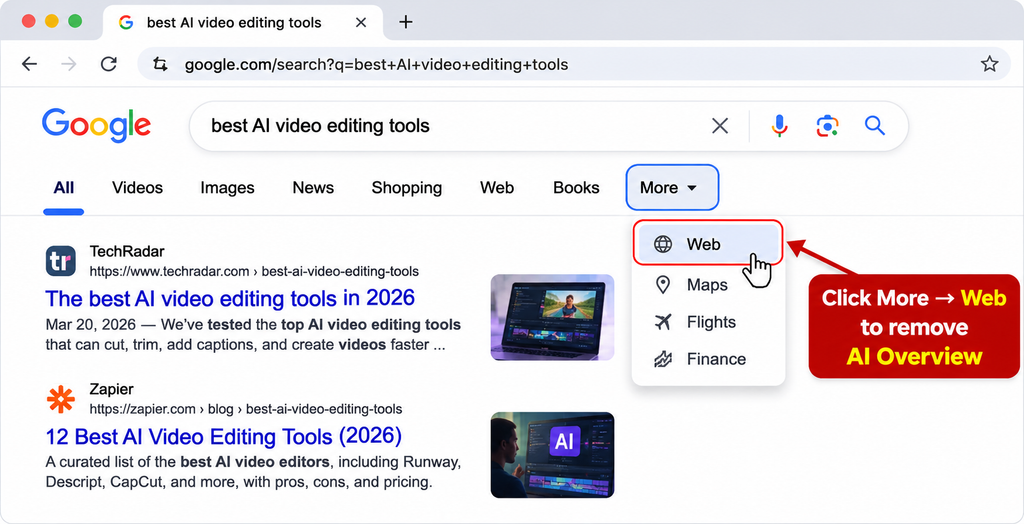
- Tap Web. If you don’t see it, tap More and then Web.
The page reloads with plain text links and no AI Overview.
The catch: you have to do this on every new search. That gets old fast, which is why Method 2 exists.
Method 2: Make “Google Web” your default search (the permanent fix)
When you tap Web, Google adds a small code to the page address: udm=14. Tell your browser to add that code to every search, and the AI Overview is gone for good on that browser.
On Chrome (Windows, Mac, Linux)
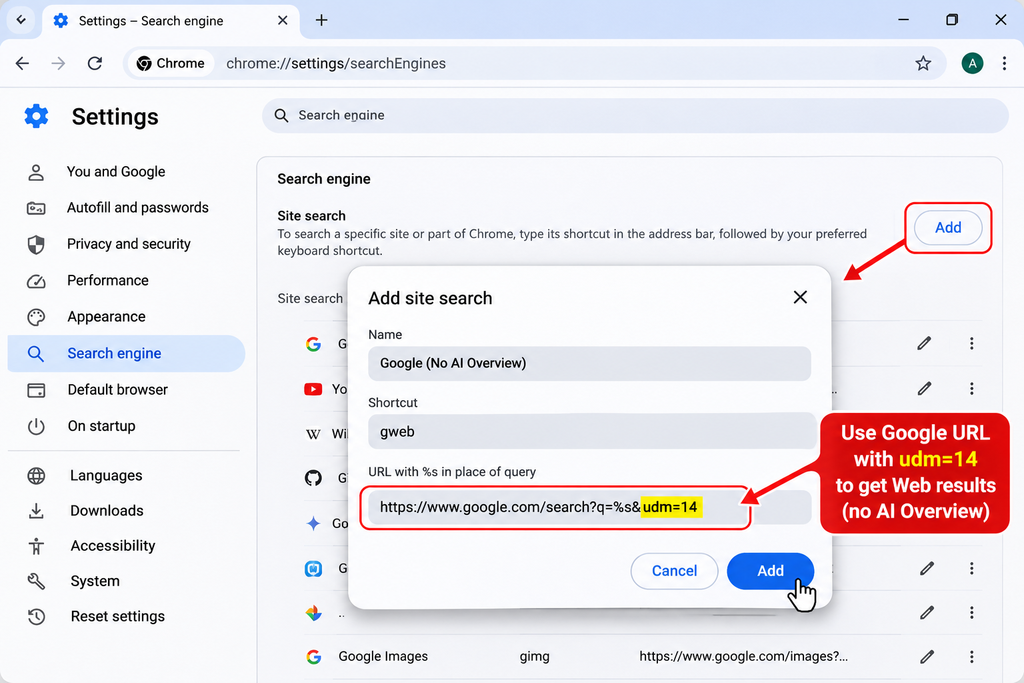
- Open Chrome Settings → Search engine → Manage search engines and site search.
- Next to Site search, click Add.
- Fill in:
- Name: Google Web
- Shortcut: gw
- URL:
https://www.google.com/search?q=%s&udm=14
- Click Add.
- Find your new entry, click the three dots next to it and choose Make default. (Or skip this step and use the tip below.)
Done. Type any search in the address bar and Google opens in Web view.
On Microsoft Edge
- Open Microsoft Edge and go to Settings.
- Select Privacy, search, and services.
- Open Search and connected services → Address bar and search.
- Visit Kagi.com and perform a search to help Edge discover the search provider.
- Return to Address bar and search.
- Select Kagi under Search engine used in the address bar.
If Kagi does not appear, check whether your Edge version supports manual search engine addition.
On Firefox
Firefox 140 and later supports adding custom search engines directly through Settings.
- Open Firefox and go to Settings.
- Select Search from the left sidebar.
- Scroll down to Search Shortcuts.
- Click Add.
- Enter Kagi as the search engine name.
- Paste your Kagi search URL and replace the search query with
%s. - Optionally enter a keyword.
- Click Add Engine.
- Return to the Default Search Engine dropdown and select Kagi.
Brave, Opera and Vivaldi
These are built on the same base as Chrome, so the steps are almost identical.
What you lose: Web view shows text links only, so maps, videos, knowledge panels and quick answer boxes (live scores, weather, train timings) can disappear too. Tip: keep normal Google as default instead, and type gw + space before a search when you want Web view.
Method 3: Add “-ai” to your search
Type your search and add -ai at the end. For example: best laptop under 50000 -ai
The minus sign is a Google “operator”. It tells Google to exclude a word. For reasons Google hasn’t explained, using an operator like this usually stops the AI Overview from appearing.
Two warnings:
- It removes results containing the word “AI”. Searching for AI tools or AI news? This trick hides the very pages you want.
- It’s a side effect, not a feature. Google supports minus (-) to exclude words from search results, but single-character exclusions like
-xare not officially guaranteed. Google could change this behaviour at any time.
Use it when: you’re on someone else’s computer, or you just need one quick search without AI.
Method 4: Install a browser extension
Extensions either rewrite every Google search into Web view, or hide the AI Overview box after the page loads.
Popular options include:
- Block AI Overview and Turn Off Google AI Overview (Chrome): hide the AI panel.
- &udm=14 and Hide AI Overview – Simple Toggle (Chrome): open every search in Web view.
- Turn off Google AI Overviews, Discussions and Ads (Chrome): also hides videos, shopping, People Also Ask and sponsored results.
- Hide Google AI Overviews (Edge Add-ons): the Edge version.
Extension verification, November 11, 2026
I checked the available Chrome Web Store and Microsoft Edge Add-ons listings.
| Extension | Rating | Users | Last updated |
|---|---|---|---|
| Block AI Overview | 5.0 (6) | 353 | Apr 11, 2026 |
| Disable AI Overview | Turn Off AI Overview | 4.1 (126) | 90,000 | Dec 19, 2025 |
| &udm=14 | 4.4 (43) | 50,000 | Oct 1, 2026 |
| Hide AI Overview – Simple Toggle | No ratings | Not displayed | Sep 25, 2026 |
| Bye Bye, Google AI | 4.3 (569) | 100,000 | Jun 5, 2026 |
Sources: Official store listings.
Before you install any extension:
- Check the permissions. Pick one that only needs access to google.com, not “all websites”.
- Check the last update date. Google changes its page often, so an old extension may already be broken.
- Keep a backup. If the AI box comes back, the Web filter still works.
Method 5: How to get rid of AI Overview on Android and iPhone
Google does not provide a setting to disable AI Overviews. Use these alternatives to access traditional web results.
On Android
- Easiest: Search on Google and tap Web to display text-based links.
- Chrome workaround: Visit TenBlueLinks.org, perform a Google search, then open Chrome Settings → Search engine and select Google Web under Recently visited.
- Firefox: Open Search settings → Default search engine → Add search engine. Enter your Google Web search URL with
%sreplacing the search query.
On iPhone
- Easiest: Search on Google and tap Web.
- Safari bookmark: Save
https://www.google.com/search?udm=14&q=as a bookmark. Append your search terms to the URL when using it. - Alternative: Change your default search engine under Settings → Apps → Safari → Search Engine and select DuckDuckGo.
These methods offer alternatives to AI-generated search summaries. Google may change how its Web filter and search parameters work.
Method 6: Switch to a search engine without AI answers
If you want to stop fighting Google, change search engines. But be careful: many “Google alternatives” have added their own AI answers too.
| Search engine | Price | AI answers? | How to turn them off | Indian-language support | Best for |
|---|---|---|---|---|---|
| DuckDuckGo No-AI | Free | Off by default on noai.duckduckgo.com | Use noai.duckduckgo.com, or its No-AI browser extension | Supports Hindi interfaces, but search quality varies. | The cleanest AI-free option |
| Brave Search | Free | Yes (“Answer with AI”) | search.brave.com/settings → turn off Answer with AI | Brave supports multiple languages, but regional quality varies. | Independent index, privacy |
| Startpage | Free | No AI-generated answers pushed above search results by default. | No separate AI-off switch required for standard search. | You can adjust search language and region settings, including Hindi. Regional-language result quality varies | Google-style results with more privacy |
| Mojeek | Free | Optional AI-generated summaries are available. | Yes. Disable Web Results Summary and Summary Tab in Preferences. | It supports language and regional search preferences, but Hindi and regional-language result quality requires further testing. | Its own independent index |
| Kagi | Professional $10/month, unlimited searches | Optional AI instant answers | Kagi settings | It offers language and regional settings, including Hindi interface support, but regional search quality varies | Ad-free, paid search |
Two honest warnings:
- Brave’s AI setting doesn’t always stick. Users on Brave’s community forum report the toggle switching itself back on.
- Smaller search engines might return fewer relevant results for Indian local searches, government services and regional news. Test your 10 most common queries across search engines before switching.
The easiest one to start with: DuckDuckGo says noai.duckduckgo.com turns off all its AI features and filters out AI-generated images by default. It also offers Chrome and Firefox extensions that make it your default.
The India angle
Good news if you’re wondering how to get rid of AI Overview on a student budget: every fix above costs ₹0. The only paid option is Kagi:
Most methods in this guide are free. Kagi is the main paid alternative.
- Starter: $5/month, approximately ₹450 before applicable taxes.
- Professional: $10/month, approximately ₹900 before applicable taxes.
- Ultimate: $25/month, approximately ₹2,250 before applicable taxes.
- Payment: Credit/debit cards through Stripe, PayPal and Bitcoin through OpenNode. UPI and RuPay support are not confirmed.
Prices use an illustrative ₹90/USD conversion. Final INR charges and applicable taxes depend on checkout.
For most students and young professionals, paid search is difficult to justify when free alternatives work.
AI Overviews in India: Google announced support for English, Hindi, Bengali, Marathi, Tamil and Telugu. The Web filter provides traditional text-based search results without AI Overviews.
Try the free methods before paying for another search engine.
Who should NOT bother removing AI Overviews
Think twice if:
- You mostly ask quick, low-stakes questions. The AI summary may save you a click.
- You rely on Google’s extra boxes like live scores, weather and maps.
- You use a work or college Google account. Your admin may control features and block extensions.
And remember: no method here is guaranteed. Even extension makers warn that udm=14 isn’t an official Google feature.
Decision rule: never trust an AI Overview for health, money, legal or exam-related answers. Click through to the original source, whichever method you use.
Article on Google Flow AI in 2026 | Readmore >>>
FAQs
Can I permanently turn off Google AI Overviews?
No. Google offers no setting that permanently turns off AI Overviews in normal Google Search, whether in your account, in Search settings or in the Google app. The closest you can get is the Web filter, a udm=14 default search engine, a browser extension, or switching to a different search engine.
How do I remove an AI Overview from a single search?
Run your search, then tap Web in the row of tabs under the search bar. If you don’t see it, tap More and then Web. The page reloads with plain text links and no AI Overview. You’ll need to repeat this for each new search unless you set up udm=14.
What is the udm=14 Google Search parameter?
udm=14 is a small code in the Google search address that opens the Web-only results view. That view shows text links without AI Overviews or most other extra boxes. You can add it to any Google search URL, or set it as your browser’s default search engine so it applies every time.
Can I make Google’s Web filter my default?
Yes, on most desktop browsers. In Chrome, go to Settings → Search engine → Manage search engines and site search, add a new entry with the URL https://www.google.com/search?q=%s&udm=14, then choose “Make default”. Edge, Brave and Firefox support similar custom search engines.
Does adding -ai to a search remove AI Overviews?
Usually, yes. Adding -ai to the end of your search often stops the AI Overview from showing. But it also tells Google to exclude pages containing the word “AI”, so it can hide useful results when you’re actually searching for AI tools or AI news. Google may also stop this trick working.
Do browser extensions really block AI Overviews?
Yes, most do. They either rewrite your searches into Web view or hide the AI Overview box after the page loads. But they can break when Google changes its page design, and some ask for wide permissions. Check permissions and the last update date before installing, and keep the Web filter as a backup.
Will the Web filter remove ads and other Google features?
The Web filter removes AI Overviews and focuses on text-based website links. However, sponsored ads may still appear in Web results. It also reduces other rich search features, such as Maps and image results. Some browser extensions offer additional controls to hide ads, discussions, shopping results, videos and People Also Ask sections.
Can I disable AI Overviews on iPhone or Android?
Not permanently. You can tap Web after each search in the Google app or your mobile browser, but neither offers a global off switch. On Android, a custom engine from a site like tenbluelinks.org can help. On iPhone, a udm=14 bookmark or switching Safari’s default to DuckDuckGo works better.
What is the difference between AI Overviews and AI Mode?
AI Overviews are AI-written summaries that appear at the top of normal Google results. AI Mode is a separate, chat-style Google Search experience where you ask follow-up questions. Neither has an official permanent off switch in standard Search, but you can avoid AI Mode simply by not opening its tab.
Which alternative search engines avoid AI answers?
DuckDuckGo’s noai.duckduckgo.com is the cleanest choice, because all its AI features are off by default. Brave Search, Startpage, Mojeek and Kagi are other common alternatives, but some include AI answers you must switch off yourself. Brave users report its AI setting sometimes turning itself back on.
Do AI Overviews affect website traffic and SEO?
They can. When users get an answer directly in Google, fewer of them click through to websites, which can reduce traffic. Google says AI Overview appearances are recorded in Search Console’s Performance report, like other Search features, so site owners can track impressions and clicks there.
Is udm=14 guaranteed to keep working?
No. udm=14 is not an official, documented Google feature, and extension makers themselves warn it may not last. Google could change or remove it at any time. If it stops working, fall back to tapping Web manually, or switch to a search engine that lets you turn off AI answers.
Final takeaways
Now you know how to get rid of AI Overview on every device you use. Here’s what to remember:
- There’s no off switch, only workarounds. Anyone promising a permanent Google setting is wrong.
- The best setup for most people: a udm=14 default search engine on your laptop, plus tapping Web on your phone.
- If you want zero AI, switch to noai.duckduckgo.com, and test it on your everyday Indian searches first.
Google changes Search almost every month, and these fixes can break overnight. Subscribe to the DailyAIWire newsletter and we’ll tell you the moment a method stops working, or a better one appears. [VERIFY: newsletter signup link]