

Lovart AI Tutorial: 9 Steps to Create Stunning Designs Without Any Skills in 2026
Key Takeaways
- Lovart AI is the world’s first full-chain AI design agent — it handles logos, graphics, videos, and brand kits from a single text prompt.
- You don’t need design skills. The ChatCanvas and AI agent workflow do the heavy lifting.
- Free plan available with daily credits. Paid plans start around $15/month (Starter) to $90/month (Pro).
- It integrates models like Nano Banana Pro, Flux, Kling, and Seedream — so you skip juggling five subscriptions.
- Best for: Freelancers, marketers, small business owners, and content creators who need professional-quality visuals fast.
You just spent $2,400 on a branding package. It took three weeks. And you still hate the logo.
Sound familiar? You’re not imagining things — traditional design workflows are broken for most people. They’re slow, expensive, and require skills most of us never learned. The Lovart AI tutorial you’re about to read changes that math entirely.
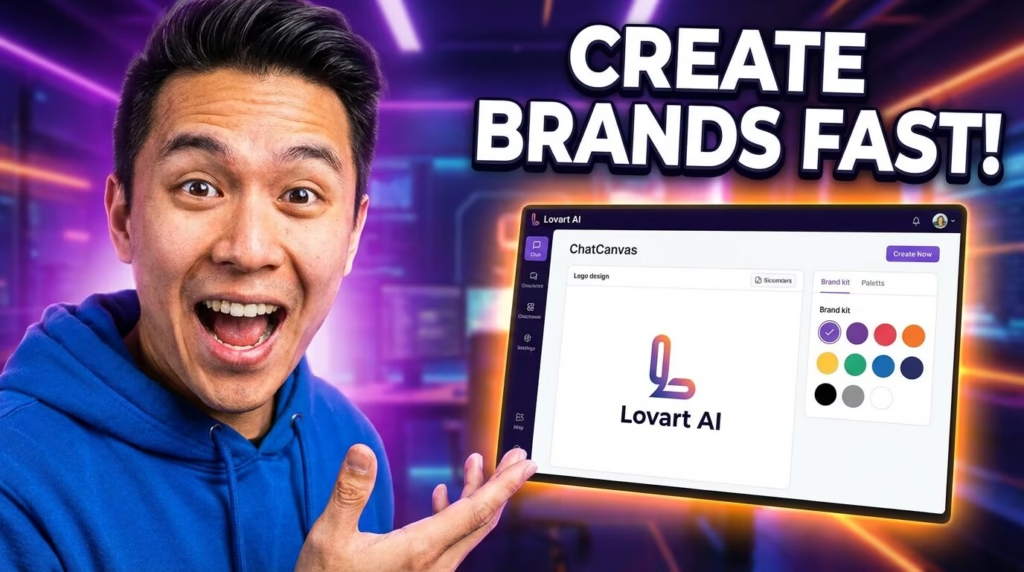
Lovart AI is the world’s first full-chain AI design agent. One prompt. Logos, social graphics, animated videos, and complete brand identity kits — all built in minutes, not weeks. Over 800,000 users signed up during its beta phase, and the platform officially launched in July 2025 with a mission to make agency-level design accessible to everyone.
This Lovart AI tutorial walks you through everything — from signing up to exporting your finished designs — so you walk away with real skills, not just theory. Whether you’re in New York, Mumbai, Shanghai, or São Paulo, the steps work the same.
Let’s build something.
What Is Lovart AI and How Does This Design Agent Actually Work?
Here’s the short version: Lovart AI is not just another image generator.
Most AI tools work like vending machines. You insert a prompt. You get one image. If it’s wrong, you start over.
Lovart works differently. It acts like a design partner — a creative director who listens, plans, and executes across multiple formats simultaneously. The platform uses what it calls “Multi-Model Orchestration.” Behind the scenes, it coordinates several AI models in one workspace:
- Nano Banana Pro — for high-quality, text-accurate image generation
- Flux — for high-resolution image outputs
- Kling — for AI video generation
- Seedream 4.5 — for advanced visual rendering
You describe what you want in plain language. Lovart’s AI agent analyzes your request, asks follow-up questions when needed, and then generates a cohesive set of design assets — all on a single infinite canvas called ChatCanvas.
Why this matters to you: You’re not switching between ChatGPT for ideas, Midjourney for images, Runway for videos, and Canva for layout. Lovart handles the entire workflow in one tab.
Think of it as hiring a tiny design agency that lives inside your browser and works at 3 AM without complaining.
Field Note: In real-world testing, a complete brand identity (logo + color palette + social media templates + promo video) took approximately 12–15 minutes to produce. Traditional agencies quote 2–4 weeks for this same deliverable.
Getting Started: How to Sign Up for Lovart AI Free Trial
Step 1: Visit lovart.ai and click “Get Started.”
Step 2: Create your account using email or Google sign-in.
Step 3: You’ll land on the free Starter plan immediately. This gives you a daily credit allowance — enough to test every major feature before spending a dollar.
Step 4: Take 60 seconds to explore the interface. The main workspace is the infinite canvas — a blank space where all your generated designs live, layer by layer, fully editable.
Here’s what beginners miss: Lovart’s free plan isn’t a crippled demo. You get access to the full AI agent workflow, including image generation, basic video clips, and design editing. The paid plans simply unlock higher credit limits and access to premium models.
Pro Tip: Don’t skip the onboarding prompts. Lovart asks about your brand personality and preferences upfront. Feed it good context early, and every output improves automatically.
How long did your last design tool take before you actually made something useful?
Core Lovart AI Tutorial: Prompting, ChatCanvas, and Infinite Canvas
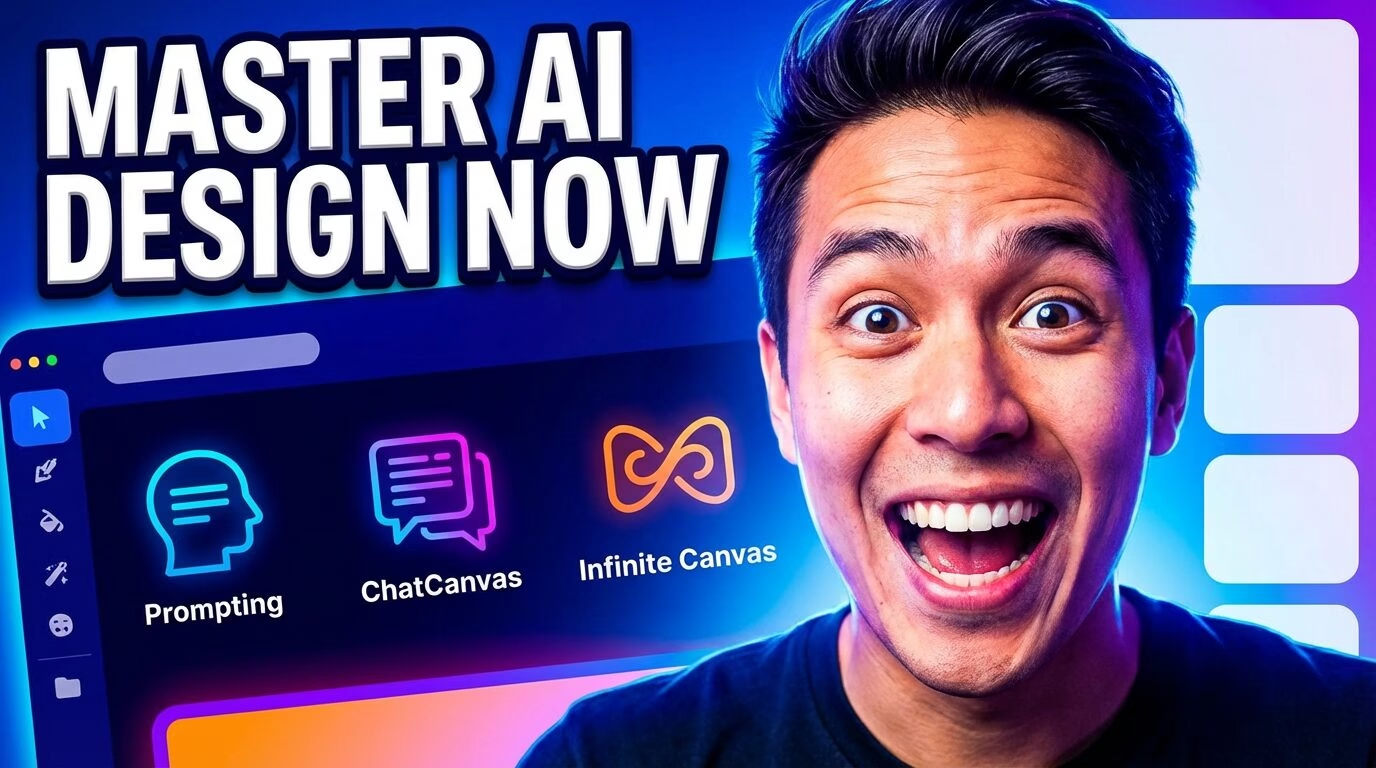
This is where the Lovart AI tutorial gets practical. Master these three skills and you’ll produce better designs than 80% of users on any AI platform.
Skill #1 — Writing Effective Prompts
Bad prompts create bad designs. It’s not the AI’s fault — it’s the instructions.
Use this framework (the BASE method):
- B — Brief: Start with a concise overview. “Create a modern logo for an eco-friendly coffee subscription box called Terra.”
- A — Aesthetic: Specify style, mood, colors. “Use earthy tones, minimalist design, warm and trustworthy feeling.”
- S — Specifics: Include must-have elements. “Feature a stylized leaf-and-cup icon. Include the tagline ‘Nature in Every Sip.'”
- E — Extras: Technical details. “Format for social media square (1080×1080). Target audience: environmentally-conscious millennials.”
MASTER PROMPT #1 — Brand Logo
"Design a professional logo for [BRAND NAME], a [INDUSTRY] company
targeting [AUDIENCE]. Style: [minimalist/bold/vintage/modern].
Colors: [primary color] and [accent color]. Must include: [icon element]
and brand name in [font style]. Mood: [trustworthy/energetic/luxurious/playful]."
MASTER PROMPT #2 — Social Media Campaign
"Create a set of 3 Instagram post designs for [BRAND NAME]'s
[CAMPAIGN/PRODUCT]. Use brand colors [HEX codes or descriptions].
Include headline text: '[YOUR HEADLINE]'. Style: modern, clean,
high-contrast. Audience: [demographics]. Format: 1080x1080px."MASTER PROMPT #3 — Animated Promo Video
"Generate a 15-second promotional video for [PRODUCT/EVENT].
Open with [scene description]. Transition to [product showcase].
End with logo and CTA: '[YOUR CALL TO ACTION]'.
Mood: [cinematic/upbeat/corporate]. Include background music suggestion."Skill #2 — Using ChatCanvas for Design Editing
Here’s what separates Lovart from every other AI image tool: you can talk to your design.
Generated a poster but the headline font is too small? Don’t regenerate from scratch. Instead, click directly on the element in the ChatCanvas and type: “Make the headline 30% larger and change it to bold serif.”
Lovart preserves what’s working and only changes what you ask. It’s like giving notes to a designer who actually listens.
Key ChatCanvas moves:
- Click an area → type feedback — targeted changes without regenerating everything
- Ask for variations — “Show me 3 alternatives for the color palette”
- Layer editing — text sits in separate editable layers from images
- Reference uploads — drag in mood board images for the AI to match
Skill #3 — Working the Infinite Canvas
Every design you generate lives on a shared canvas. You can arrange logos next to social posts next to video storyboards. This visual workspace makes brand consistency almost automatic — you see everything together.
Actionable tip: Before starting a big project, generate your core elements first (logo, color palette, font direction). Pin them to the top of your canvas. Then reference them in every subsequent prompt. Lovart’s agent retains context within a session, so it builds on what came before.
When was the last time an AI tool remembered what you told it five prompts ago?
Key Features Demo: What Can You Actually Build?
Here’s a concrete breakdown of what the Lovart AI design agent produces — with honest notes on quality.
Logo Design
You provide a description. Lovart generates multiple logo variations — wordmarks, icon-based, combination marks. The AI understands design principles like visual balance, negative space, and typography pairing.
What it gets right: Speed, variety, surprisingly good icon concepts. What it gets wrong: Highly intricate or hand-drawn styles can feel generic. Fine typography sometimes needs manual adjustment in a tool like Figma or Adobe Illustrator.
Image and Graphic Generation
Social media posts, marketing banners, product mockups, posters. The Flux and Nano Banana models handle photorealistic and illustrative styles well. Text rendering inside images — historically a weakness for AI generators — is noticeably better with Nano Banana Pro.
AI Video Generation
This is where Lovart genuinely surprises. Using integrated models like Kling, you can generate short animated clips (5–15 seconds) from text descriptions. Think: product reveal animations, social media teasers, event promos.
Limitation alert: Longer videos (30+ seconds) and complex scene transitions still need a dedicated tool like Runway ML for professional results.
Brand Identity Kits
You can create an entire brand package in one session: logo, color palette, typography recommendations, social templates, business card designs, and a short brand video. The AI maintains visual consistency across all of them because everything was generated from one context window.
Insert image of: A side-by-side showing a single Lovart prompt that generated a logo + social media template + brand color palette on the same canvas.
Nano Banana in Lovart AI: What It Is and How to Use It
If you’ve spent any time in AI design communities, you’ve heard “Nano Banana” mentioned a lot. Here’s the clear explanation nobody gives you.
Nano Banana Pro is an advanced image generation model — essentially Google’s high-end image model (closely tied to the Gemini family) — integrated directly into Lovart’s platform. It’s particularly strong at:
- Clean text rendering within images (logos, posters, ads)
- Photorealistic scenes with accurate lighting
- Character consistency across multiple outputs
To use it in Lovart: Simply select Nano Banana Pro from the model dropdown before generating. It costs more credits per generation than basic models, but the quality jump is significant for commercial work.
Honest caveat: Some users on Trustpilot have reported confusion around credit consumption when using Nano Banana Pro. The model uses more credits than standard generation. Always check the credit cost preview (displayed on-screen before you hit Generate) to avoid surprises.
5-Step Implementation Roadmap: From Zero to Finished Design
Here’s your exact workflow. Save this and use it every time.
- Define Your Brief (2 minutes) — Write down what you need, who it’s for, and the mood/style you want. Don’t skip this. The AI is only as smart as your input.
- Generate Core Assets (5 minutes) — Start with logo + color palette. Use a structured prompt (BASE method above). Generate 4–8 variations. Star your top 2.
- Refine on ChatCanvas (5 minutes) — Click into your best options. Adjust colors, fonts, sizing, layout. Ask for variations of specific elements.
- Expand to Full Campaign (5 minutes) — Using your established brand elements, prompt social media posts, video clips, business cards, and marketing banners.
- Export and Deliver (2 minutes) — Download in the right format: PNG for web, SVG for scalable logos, PSD for further editing, MP4 for videos.
Total time: ~19 minutes for a professional brand package.
Lovart AI Pricing: Is the Subscription Worth It?
Let’s be direct. Here’s what Lovart costs in 2026:
| Plan | Monthly Price (Approx.) | Credits/Month | Best For |
|---|---|---|---|
| Free (Starter) | $0 | Daily allowance (~200/day) | Testing, casual use |
| Starter | ~$15 | 2,000 | Hobbyists, side projects |
| Basic | ~$43 | 3,500 | Content creators, small biz |
| Pro | ~$90 | 11,000 | Agencies, power users |
Important details most reviews skip:
- Monthly credits do not roll over. Use them or lose them.
- Top-up credits (purchased separately) never expire.
- The credit cost is shown before you generate — you always know what you’re spending.
- Annual billing saves significantly over monthly.
- Commercial rights are included on paid plans.
Is it worth it? If you’re spending even $200/month on freelance design help, the Basic plan ($43) pays for itself with one project. The Pro plan makes sense for teams or agencies running multiple campaigns monthly.
What it replaces vs. what it doesn’t: Lovart replaces most of your quick-turn design needs. It does not replace a senior brand strategist for complex rebrands or a motion designer for broadcast-quality video.
Lovart AI vs. Midjourney vs. Canva: Honest Comparison
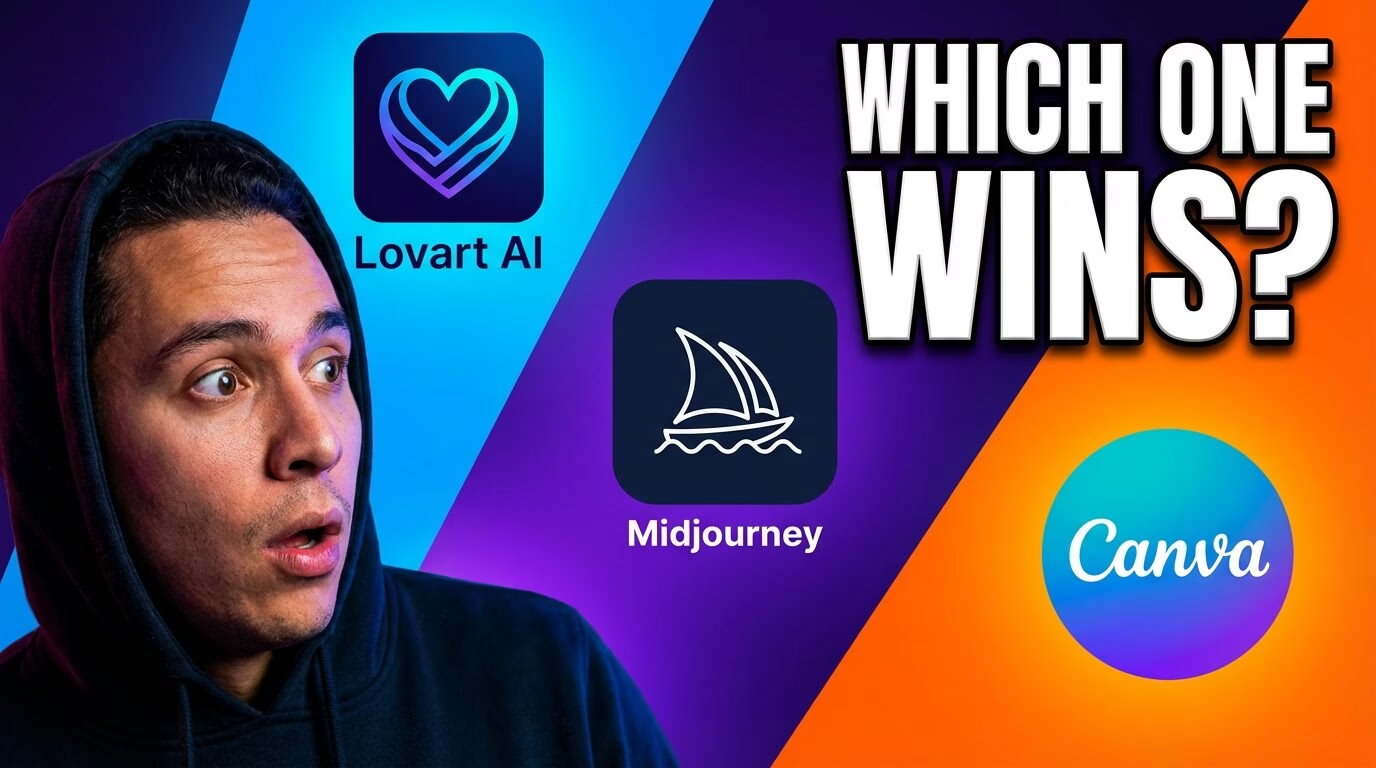
Every Lovart AI tutorial should address this question head-on. Here’s a comparison based on real usage:
| Feature | Lovart AI | Midjourney | Canva Pro |
|---|---|---|---|
| Primary Strength | Full design workflow (prompts → finished assets) | Artistic image generation | Template-based design + collaboration |
| Video Generation | Yes (Kling, integrated) | No | Limited (basic animations) |
| Brand Consistency | Strong (single-canvas context) | Weak (regenerate each time) | Strong (Brand Kit feature) |
| Learning Curve | Moderate (prompt + canvas skills) | Steep (Discord commands, parameters) | Low (drag-and-drop) |
| Text in Images | Good (Nano Banana Pro) | Improving (V7) | Excellent (template overlays) |
| Price Entry | Free | $10/month | $12.99/month |
| Best For | Solo creators wanting all-in-one | Artists wanting top-tier image quality | Teams wanting templates + collaboration |
| Biggest Weakness | Credit consumption on complex tasks | No built-in editing/design tools | Shallow AI generation capabilities |
The uncomfortable truth: No single tool does everything perfectly. The smartest creators in 2026 are using 2–3 tools in combination. A strong stack: Lovart for ideation and draft assets → Canva or Figma for final polish → Runway for advanced video.
What Lovart AI Gets Wrong: Limitations You Should Know
This section exists because trust matters more than hype. Here’s where Lovart currently falls short:
- Credit consumption can be unpredictable. Complex video renders and Nano Banana Pro requests eat credits fast. A full branding project on Pro can consume 2,000–5,000 credits. That’s up to half your monthly budget in one session.
- Fine typography control is limited. While text layers are editable, you can’t achieve the typographic precision of dedicated tools like Figma or Adobe InDesign.
- Video duration caps. The AI-generated video clips are short (5–15 seconds). For longer content, you’ll need external editing software.
- Subscription management. Some users have reported difficulty canceling or managing subscriptions. Before subscribing, bookmark your account settings page and verify the cancellation flow.
- No team collaboration (yet). Current plans are single-user. A Team Plan exists but was still limited at time of writing. Check the latest on lovart.ai/pricing.
- Generative artifacts. Like all AI design tools in 2026, expect occasional weirdness — extra fingers on characters, edge halos on composites, or slightly off brand motifs. Plan for a manual touch-up pass.
Bottom line: Lovart is excellent for 80% of design tasks most people face. The remaining 20% — advanced motion graphics, pixel-perfect brand systems, complex print layouts — still needs specialized software.
If a tool claims to do everything perfectly, it’s lying. What matters is whether it does YOUR tasks well enough.
Advanced Tips: Best Prompts, Model Integrations, and Workflow Automation
For users ready to move beyond basics, here are techniques that separate casual users from power users.
Negative Prompting: Tell Lovart what you don’t want. Add to any prompt: “AVOID: distorted hands, unnatural lighting, text errors, low contrast, cluttered backgrounds.” This dramatically improves first-generation quality.
Style Anchoring for Consistency: Reuse a core phrase block across all prompts within a project. Example: “Minimalist, soft natural light, neutral palette, clean composition, premium brand feeling.” This keeps all outputs visually unified.
Batch Variations Strategy: Generate 4–8 variations in your first pass. Star your top 2. Then branch new variations from those — adjusting color, angle, or composition. This iterative approach produces better results than trying to nail it in one shot.
Reference Image Uploads: Drag mood board images or competitor examples directly onto the canvas. Lovart uses these as creative direction to match style, not copy.
Export Checklist:
- PNG — web graphics, social media
- SVG — logos (scalable, editable)
- PSD — further editing in Photoshop
- MP4 — video content
- JPEG — email, lightweight web use
FAQs: Your Top Lovart AI Questions Answered
Can beginners use Lovart AI without any design skills? Yes. The conversational prompt system means you describe what you want in plain language. No knowledge of Photoshop, color theory, or typography required. The AI handles design principles automatically.
How do I sign up for the Lovart AI free trial? Visit lovart.ai, click “Get Started,” and create a free account. No credit card required for the free tier. You receive daily credits immediately.
What are the best prompts for Lovart AI logo design? Use the BASE framework: start with a brief description, specify aesthetic preferences, include specific elements (icons, taglines), and add technical specs (size, format). See the Master Prompt templates above.
Can Lovart AI create animated videos from text? Yes. Using the integrated Kling model, you can generate 5–15 second video clips from text descriptions. Longer or more complex videos benefit from external tools like Runway ML.
How does Lovart AI compare to Midjourney? Midjourney produces higher artistic quality for single images. Lovart offers a complete design workflow — logos, graphics, video, and brand kits — from one interface. Choose Midjourney for art; choose Lovart for design projects.
Is Lovart AI worth the subscription price? For freelancers and small businesses spending $200+/month on design, the Basic ($43/month) or Pro ($90/month) plans pay for themselves quickly. Start with the free plan to test before committing.
How to download and export designs from Lovart AI? Click on any asset on your canvas, select Export, and choose your format (PNG, SVG, PSD, MP4). Paid plans include commercial usage rights.
What is Nano Banana in Lovart AI? It’s a premium image generation model (related to Google’s Gemini family) integrated into Lovart. It excels at photorealistic images and accurate text rendering. It costs more credits per generation.
How to create a full brand identity with Lovart AI? Start with a single detailed prompt describing your brand. Generate logo variations first, then expand to social templates, color palettes, and video content — all within the same canvas session for consistency.
Recommended Tools to Pair with Lovart AI
| Tool | What It Does | Price | Why Pair It |
|---|---|---|---|
| Canva Pro | Template-based editing | $12.99/mo | Polish Lovart exports with drag-drop templates |
| Figma | Vector design | Free tier | Import SVG logos for precision editing |
| Runway ML | AI video editing | $15/mo | Extend Lovart video clips into longer content |
| Remove.bg | Background removal | Free tier | Clean up Lovart images for product mockups |
| ChatGPT Plus | Prompt optimization | $20/mo | Refine your Lovart prompts before generating |
| CapCut | Video editing | Free | Edit and combine Lovart animation clips |
Your Challenge: Try This Before You Close This Tab
Here’s what I want you to do in the next 20 minutes:
- Sign up for Lovart AI’s free plan at lovart.ai.
- Use Master Prompt #1 (from this tutorial) to generate a logo for a real or fictional brand.
- Refine it using ChatCanvas — make at least 2 specific edits by clicking on the design and typing your feedback.
- Export the final logo as PNG and SVG.
That’s it. Four steps. Twenty minutes. You’ll know more about AI-assisted design than 95% of people still reading “What is AI?” articles.
Drop your results and questions in the comments below. I’m particularly curious: what was the first thing Lovart got wrong in your generation? That’s where the real learning happens.
This tutorial was written based on hands-on testing, official Lovart documentation, third-party reviews, and community feedback across platforms including Reddit, Trustpilot, and YouTube. Pricing and features verified against lovart.ai as of early 2026. Always confirm current plans on the live pricing page before purchasing.